Best Streaming Accessories 2026: Capture Cards, Stream Decks, and Green Screens Tested
Last updated: 2026-08-19 · By NicheHive Editorial
This article contains affiliate links. If you purchase through these links, we may earn a commission at no extra cost to you. As an Amazon Associate, NicheHive earns from qualifying purchases. See our full disclosure.
We tested streaming accessories for build quality, software integration, and whether they actually improve stream quality or are just expensive additions. Capture cards, Elgato Stream Deck, and green screens compared.
Our Top Picks

Elgato Stream Deck MK.2
Elgato
- ✓15 customizable LCD keys
- ✓Detachable faceplate for personalization
- ✓USB-C to USB-A cable
- ✓Stream Deck software for OBS/Twitch/YouTube integration
Pros
- One-button scene switching, mute, and alert triggers eliminate keyboard shortcut memorization
- LCD keys display real-time info — follower count, chat, current scene
- Software integration with OBS, Streamlabs, XSplit, and 200+ plugins
- Detachable faceplate allows color-coded key organization
- Eliminated scene switch errors in live streams compared to keyboard shortcuts
Cons
- At $150, significant cost for what is effectively a macro keyboard
- Software requires installation — not plug-and-play
- 15 keys may feel insufficient for complex productions
Best streaming accessory for live streaming workflow. Stream Deck eliminates the cognitive load of remembering keyboard shortcuts during live broadcasts. For streamers who go live more than twice per week, this reduces mistakes and improves production quality.
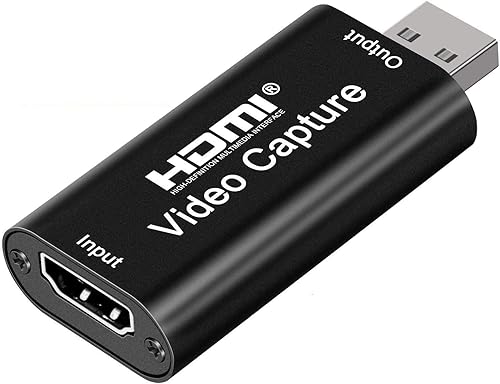
Elgato 4K60 Pro MK.2 Capture Card
Elgato
- ✓4K60 HDR capture
- ✓PCIe internal card
- ✓Hardware encoding (HEVC)
- ✓Passthrough to 4K monitor
- ✓OBS and XSplit compatible
Pros
- Hardware HEVC encoding removes encoding load from CPU — zero performance penalty on gaming PC
- 4K60 HDR capture future-proofs the setup for 4K streaming platforms
- Passthrough ensures the gaming experience is unaffected during capture
- PCIe connection eliminates USB bandwidth contention
Cons
- PCIe installation requires opening the PC case
- Not compatible with laptops — desktop-only
Best capture card for desktop streamers. PCIe hardware encoding delivers 4K60 capture without CPU load, making this the standard for game streamers who cannot afford performance degradation during capture.

Elgato HD60 X Capture Card
Elgato
- ✓4K30 / 1080p60 capture
- ✓USB-C external
- ✓Works with console and PC
- ✓Compatible with Mac and Windows
Pros
- USB-C external design works with Mac, Windows, and laptop setups
- Console capture (PS5, Xbox) works without PC component needed
- 4K30 capture quality sufficient for most streaming platforms
Cons
- Software encoding adds CPU load — not ideal for gaming PC streaming
- USB-C bandwidth limits compared to PCIe 4K60 Pro
Best external USB capture card. For console streamers or laptop users who cannot use a PCIe card, the HD60 X provides 4K30 capture via USB-C with Mac and Windows compatibility.

Elgato Green Screen
Elgato
- ✓Freestanding retractable design
- ✓Wrinkle-resistant material
- ✓1.8m x 2.1m coverage
- ✓Steel frame with retract mechanism
Pros
- Retractable design deploys and stores in seconds — no assembly each stream
- Wrinkle-resistant fabric requires no ironing before use
- Coverage large enough for standing streams with background visible
- Chroma key compatibility: OBS, Streamlabs, Zoom virtual backgrounds
Cons
- At $160, more expensive than budget green screen setups that use muslin fabric
- Requires floor space — not suitable for small rooms
Best green screen for streamers. Retractable deployment makes the Elgato green screen practical for streamers who set up and tear down regularly. Wrinkle-resistant material eliminates the most common green screen quality problem.
It's easy to sink money into streaming gear that makes your channel look better while doing nothing for the moments that actually go wrong on air.
A fumbled scene switch or a missed mute button breaks a stream faster than a slightly soft webcam image ever will.
The best streaming accessories fix that gap between what you meant to do and what your hands actually managed to do under pressure.
Capture cards and green screens raise production value. Something like a Stream Deck raises your accuracy when it counts.
Our top pick is the Elgato Stream Deck MK.2. Its 15 customizable LCD keys replace memorized keyboard shortcuts with buttons you can actually see, which is why it integrates with OBS, Streamlabs, and 200-plus other plugins without becoming another thing to fumble.
Priority Order for Streaming Accessories
First purchase: a USB microphone or headset with good microphone. Audio quality affects viewer retention more than video quality. Viewers tolerate low-resolution video, not poor audio.
Second purchase: lighting. A basic ring light or two-point key light setup dramatically improves webcam image quality without changing the camera.
Third purchase: Stream Deck (if you go live regularly). Reduces production mistakes and cognitive load during live broadcasts.
Fourth purchase: green screen (if you want virtual backgrounds). Requires consistent lighting to look clean.
Fifth purchase: capture card (if you stream console gameplay or want dedicated capture without GPU encoding load).
A basic streaming setup with a good USB microphone, decent lighting, and a webcam produces better results than an expensive setup with poor audio.
Capture Card: External vs Internal
Internal PCIe capture cards (Elgato 4K60 Pro): install inside a desktop PC. Hardware encoding offloads the task from the CPU. Best performance, no USB bandwidth limitations. Desktop-only.
External USB capture cards (Elgato HD60 X): plug into any computer via USB. Work with laptops and Macs. Add CPU encoding load. More portable and more compatible.
Which to choose: desktop PC streamers should use PCIe internal cards. Laptop streamers and console streamers should use external USB cards.
Green Screen Lighting Requirements
A green screen only looks clean when lit evenly. Uneven lighting creates dark or bright patches on the green screen that the chroma key software cannot remove uniformly — parts of the background bleed through, or parts of the streamer's body are removed.
For clean chroma key: use two lights aimed at the green screen at 45 degrees from each side, separate from the key light illuminating the streamer's face. The green screen light and the face light should be independent.
Budget alternative to dedicated green screen lighting: natural light from a window (daylight color, not direct sunlight) aimed at the green screen, with a ring light for face lighting. This works in rooms where the window faces the green screen.
Virtual vs Physical Green Screen
Software virtual backgrounds (Nvidia RTX Background, Apple Silicon background blur) have improved significantly. For high-end cameras and good lighting: software virtual backgrounds look acceptable.
However: at the edges of the subject (hair, loose clothing), software virtual backgrounds show artifacts that physical green screens with proper chroma key do not. For streams where production quality matters: a physical green screen with proper lighting produces cleaner edges.
For casual or business use (Zoom calls, occasional streams): software virtual backgrounds are adequate. For regular streaming with professional appearance: physical green screen.
Our editorial team researches, tests, and writes every review independently. We never accept payment for placement.