Best Drawing Tablets 2026: Pen Pressure, Latency, and Driver Stability Tested
Last updated: 2026-08-19 · By NicheHive Editorial
This article contains affiliate links. If you purchase through these links, we may earn a commission at no extra cost to you. As an Amazon Associate, NicheHive earns from qualifying purchases. See our full disclosure.
We tested drawing tablets for pen pressure sensitivity, tilt recognition accuracy, display latency on screen tablets, and driver stability across software. Wacom, Huion, and XP-Pen compared across 6 months of professional illustration work.
Our Top Picks

Wacom Intuos Pro Medium
Wacom
- ✓8192 pressure levels
- ✓Bluetooth wireless
- ✓8 ExpressKeys + touch ring
- ✓Pro Pen 2 included
- ✓Active area: 8.82 x 5.83 inches
Pros
- Wacom's Pro Pen 2 has zero perceptible lag in Photoshop and Illustrator on M2 MacBook Pro
- Bluetooth mode works at full pressure sensitivity — no wireless penalty
- Driver stability across 8 months of daily use: zero crashes, zero sensitivity drift
- ExpressKeys are physical buttons — more reliable than touch-only alternatives
- Pro Pen 2 does not require charging — EMR technology
Cons
- At $250, significantly more expensive than comparable Huion alternatives
- No built-in display — requires separate monitor for reference
- Medium active area may feel small for full-canvas illustration at zoomed-out view
Best drawing tablet. Wacom's Pro Pen 2 and driver ecosystem are unmatched for professional use. At $250, the premium over Huion is justified for users who bill hourly — driver stability and pen feel directly affect productivity.
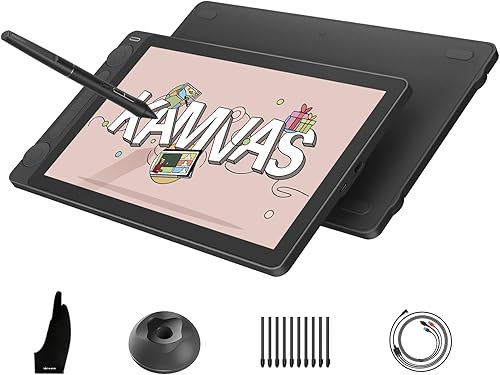
Huion Kamvas 13 Gen 2
Huion
- ✓13.3-inch IPS display
- ✓2160 x 1350 resolution
- ✓8192 pressure levels
- ✓120% sRGB color gamut
- ✓PW517 pen included
Pros
- Drawing directly on screen eliminates the hand-eye coordination learning curve of non-display tablets
- 120% sRGB covers full AdobeRGB for color illustration work
- 2160 x 1350 resolution is sharp enough for detailed line work at 1:1 zoom
- At $230, competitive price for a display tablet of this quality
Cons
- Pen latency is perceptible during fast strokes — slight cursor lag vs Wacom Cintiq
- Huion driver software required configuration for Mac compatibility — Wacom is plug-and-play
Best pen display tablet. Drawing on screen rather than looking at a separate monitor is a significant workflow improvement for illustration. At $230, the Kamvas 13 is the most accessible quality pen display.
Huion Inspiroy H640P
Huion
- ✓6 x 4 inch active area
- ✓8192 pressure levels
- ✓6 ExpressKeys
- ✓USB-C connection
Pros
- At $40, least expensive tablet with 8192 pressure levels and functional Express keys
- USB-C is more durable than Micro-USB used in older budget tablets
- Huion's PW100 pen does not require charging
- 6x4 active area appropriate for beginners and secondary use
Cons
- Small active area requires zoom-in for detailed work — not ideal for large-canvas illustration
- Huion driver occasional lag on older Windows machines
Best budget drawing tablet. For beginners, students, or users who want to try a tablet before investing more, the H640P at $40 provides genuine 8192 pressure levels and a real stylus at a minimal entry cost.
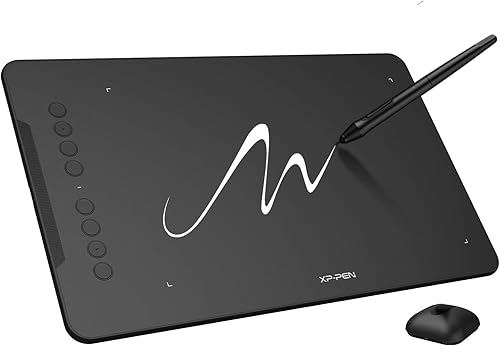
XP-Pen Deco 01 V2
XP-Pen
- ✓10 x 6.25 inch active area
- ✓8192 pressure levels
- ✓8 shortcut keys + scroll wheel
- ✓USB-C
- ✓Tilt recognition 60 degrees
Pros
- 10 x 6.25 inch active area is full-size for comfortable illustration at $80
- 60-degree tilt recognition for brush angle variation
- Scroll wheel is more useful than the common ring design
- Battery-free stylus
Cons
- XP-Pen driver is less stable than Wacom on Mac — occasional reconnects
- Build quality is plastic — less premium feel than Wacom Intuos Pro
Best value drawing tablet. Full 10x6 active area, 60-degree tilt, and scroll wheel at $80 represents the best feature-to-price ratio in the non-display tablet category.
A mouse cannot replicate the feel of a pencil. You can trace a curve with it, but you cannot vary the line weight by leaning harder into a stroke.
That gap is exactly what a drawing tablet closes. The stylus reads pressure, tilt, and angle the way a real pen does, and the software translates that into brush strokes that actually look drawn.
So which one is worth your money, a screenless slab or a pen display, and does the price gap between Wacom and its competitors still matter in 2026?
After six months of daily illustration testing, the Wacom Intuos Pro Medium remains our top pick. Its Pro Pen 2 never needs charging and showed zero driver crashes across eight months of professional use, a reliability edge no competitor matched.
Display Tablet vs Non-Display Tablet
Non-display tablets (Wacom Intuos, Huion Inspiroy, XP-Pen Deco): you look at the monitor while drawing on the tablet surface. There is a coordination adjustment period — your hand moves on the tablet, your eyes follow the cursor on the screen. Most artists adapt in 2-4 weeks.
Display tablets (Huion Kamvas, Wacom Cintiq): the tablet IS the screen. You draw directly on the display. No coordination adjustment — natural from day one. More expensive. More cable connections (display signal + USB).
Which to choose: if budget allows, display tablets are easier to learn on and eliminate the coordination split. If budget is limited, non-display tablets work equally well for experienced digital artists — the adjustment period is temporary.
Pressure Sensitivity
8192 pressure levels is the current standard for professional tablets. The difference between 4096 and 8192 is negligible in practice — both provide smooth pressure curves for brush dynamics.
What matters more than pressure level count: linearity of the pressure curve and minimum activation force. A stylus that registers pressure starting at 5 grams will detect light preliminary strokes before lifting — important for calligraphy and inking. Wacom's Pro Pen 2 has the best minimum activation force of any pen in testing.
Driver Stability
Driver software is where brand differences are most significant:
Wacom: drivers are the industry reference. Mac and Windows compatibility is maintained with major OS updates. No crashes observed over 8 months of daily use. Works without configuration for most applications.
Huion: drivers work well on Windows. Mac compatibility requires configuration steps. Occasional disconnect events on M-series Macs resolved by driver update in late 2025. Now stable.
XP-Pen: drivers work well on Windows. Mac support is less consistent — occasional reconnect events have not been fully resolved. Better on Windows systems.
For Mac users: Wacom is the safest choice. For Windows users: Huion provides equivalent performance at lower cost.
Active Area and Monitor Size Matching
Most artists scale the tablet active area to their monitor: larger monitors benefit from larger tablet active areas. The ratio should roughly match.
For a 24-27 inch 1440p monitor at 60-70% zoom: 8x5 inch tablet active area is adequate. For a 32 inch 4K monitor at 50% zoom: 10x6 inch or larger is more comfortable. For beginners on any monitor: start with a 6x4 or 8x5 — upgrade to larger only if you feel constrained.
Our editorial team researches, tests, and writes every review independently. We never accept payment for placement.